 Are you staring at an old, outdated WordPress site, wondering how to modernize without destroying your search rankings? Maybe you're feeling confused about the exact steps for a domain migration, asking "Is this possible?" or "What happens to the old site?"
The fear of a botched migration leading to a nosedive in traffic is real. But it doesn't have to be your reality.
WordPress migrations are like moving houses – when done carelessly, valuable possessions (your hard-earned SEO rankings) get lost or damaged. But with proper planning and execution, you can successfully relocate while keeping everything intact.
This comprehensive guide will walk you through every stage—planning, execution, and post-migration—to ensure your traffic and rankings remain secure. We'll cover moving hosts, changing domains, and all the critical SEO steps in between.
Key Takeaways
A successful WordPress migration requires a three-phase approach—planning, execution, and monitoring—to protect your SEO rankings and prevent traffic loss.
Implementing 301 redirects is the most critical step, as it passes 90-99% of link equity from your old URLs to the new ones.
Before you begin, perform a full SEO audit, create a complete backup of your site, and map all old URLs to their new destinations.
Phase 1: Pre-Migration - Your Strategic Blueprint
Before touching a single file, you need a solid plan. This preparation phase is where most successful migrations are made (or broken).
1. Choose Your Destination & Set Up a Staging Environment
First, decide where your WordPress site will live after migration. For full control over your website, it's generally recommended to choose a self-hosted solution (WordPress.org) over a managed platform like WordPress.com.
Create a staging environment using a temporary domain or subdomain (e.g., dev.yourdomain.com) to build the new site while keeping the old one operational. This addresses the common question about building on a "dummy domain" while maintaining your live site.
Considering a Modern Stack? If you're moving to Next.js or React, this migration is the perfect opportunity to upgrade your blog infrastructure.
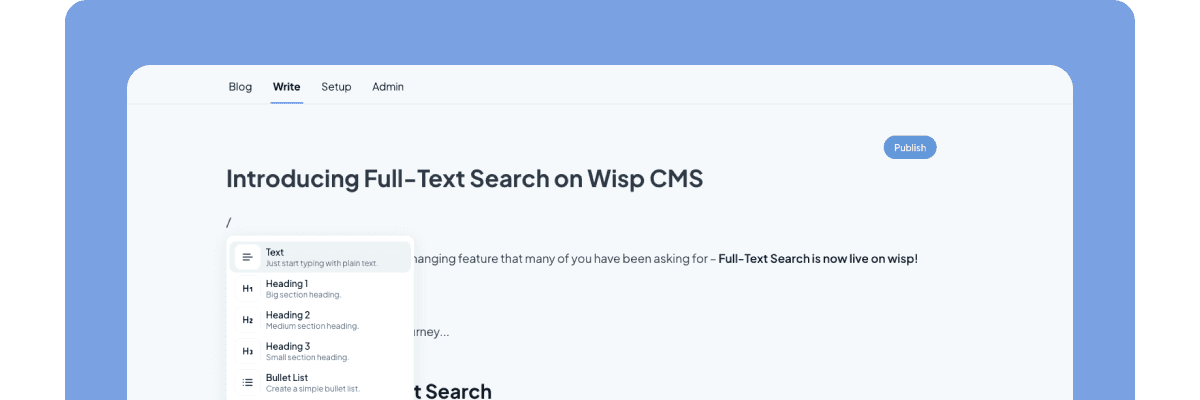
Wisp is an ideal choice for this scenario – a headless CMS built specifically for adding high-performance blogs to Next.js sites. It solves the pain of constant engineering overhead for content edits with:
A developer-friendly approach that integrates quickly via a JS SDK and Content API
A non-technical editor experience (similar to Medium/Notion) for marketers
Built-in SEO guidance for metadata, JSON-LD, and sitemap implementation
Global CDN delivery for content and images
2. Conduct a Comprehensive SEO Audit & Performance Benchmark
You can't protect what you don't measure. Before moving, you need a snapshot of your current SEO health:
Track Performance: Use Google Analytics to document organic traffic levels. The MonsterInsights plugin can simplify this process.
Crawl Your Site: Use a tool like Screaming Frog SEO Spider or Semrush to crawl every URL. Export this list—it will become your source of truth for URL mapping and redirects.
Document Everything: Record your current URL structure, title tags, meta descriptions, and keyword rankings.
3. Create a Full & Verified Backup
This is your safety net. Never start a migration without it:
Use a reliable backup plugin like Duplicator or All-in-One WP Migration
A complete backup includes:
Your Website Files: Themes, plugins, uploads, etc.
Your Database: All your posts, pages, comments, and settings
Store the backup in a safe, off-server location (e.g., Google Drive, Dropbox)
4. Prepare a URL Map
Create a simple spreadsheet with two columns: "Old URL" and "New URL":
Use the crawl data from your SEO audit for the "Old URL" column
If your URL structure is changing (e.g.,
oldsite.com/blog.php?id=123tonewsite.com/my-awesome-post), map every old URL to its new equivalentThis map becomes the blueprint for your 301 redirects, which are essential for preserving SEO value
Phase 2: Execution - The Migration Process
Now that you've planned thoroughly, it's time to execute the migration. Here are the most reliable methods:
Choose Your Migration Method:
Method 1: Using a Migration Plugin (Recommended for most users)Plugins like All-in-One WP Migration automate much of the heavy lifting:
Install the plugin on your old WordPress site
Use the plugin to export your entire site into a single
.wpressfileSet up a fresh WordPress installation on your new host
Install the same plugin on the new site
Use the "Import" function to upload the
.wpressfile. The plugin handles file replacement and database URL updates
This gives you full control but requires technical comfort:
Export Database: Use phpMyAdmin on your old host to export your WordPress database as a
.sqlfileDownload Files: Use an FTP client (like FileZilla) to download all your WordPress files (
wp-content,wp-config.php, etc.)Create New Database: On your new host, create a new, empty database and a database user
Upload Files: Upload all the downloaded files to your new server's root directory via FTP
Update
wp-config.php: Edit this file on the new server with your new database detailsImport Database: Use phpMyAdmin on the new host to import the
.sqlfile
Critical Step for URL Changes
If your domain name or URL structure is changing, you must update the URLs in the database:
Use the Better Search Replace plugin to find all instances of your old domain (e.g.,
http://dev.example.com) and replace them with the new one (e.g.,https://www.example.com)Important Note: After running the search and replace, you will likely be logged out of your WordPress admin panel. This is normal, as the site is now configured for the new domain, which may not be pointing to the server yet.
Phase 3: Post-Migration - The SEO Safeguard Checklist
This is the most critical phase for preserving your SEO rankings. Follow these steps carefully:
1. Implement 301 Redirects (Non-Negotiable)
A 301 redirect is a permanent redirect that tells search engines and browsers that a page has moved permanently. It passes approximately 90-99% of its link equity (SEO value) to the new page, while a 302 redirect is temporary and does not pass this value.
How to Set Up 301 Redirects:
Using a Plugin: The Redirection plugin makes this process straightforward:
Install and activate the plugin
Go to
Tools -> RedirectionEnter the old URL in Source URL and the new URL in Target URL
Click Add Redirect
Editing the .htaccess File (for domain-wide redirects):
Access your
.htaccessfile via FTP or your host's File ManagerIMPORTANT: Back up the file before editing
Add the following code to the top of the file to redirect an entire domain:
RewriteEngine On
RewriteCond %{HTTP_HOST} ^(?:www\\.)?oldsite\\.com$ [NC]
RewriteRule ^ http://newsite.com%{REQUEST_URI} [L,R=301]
Save the file
2. Update DNS Settings
This step makes your new site live on your domain:
Go to your domain registrar (where you bought your domain)
Update the nameservers to point to your new hosting provider
DNS Propagation: Be patient. It can take anywhere from a few hours to 48 hours for these changes to take effect globally
3. Update Google Search Console & Analytics
Properly updating your search tools is critical for maintaining visibility:
Google Search Console (GSC):
Verify your new site in GSC
Submit your new
sitemap.xmlfileIf you changed your domain, use the Change of Address tool in GSC settings. This explicitly tells Google about your move
Google Analytics:
Ensure your tracking code is correctly installed on the new site
Verify it's collecting data correctly after migration
4. Test, Crawl, and Monitor
The job isn't finished once the migration is complete. Ongoing monitoring is essential:
Test Everything: Browse your new live site. Check for broken links, missing images, and functionality issues
Crawl the New Site: Run another crawl with Screaming Frog on the new live site. Compare it to your original crawl to find any 404 errors or missing pages
Monitor GSC and Analytics: For the next few weeks, keep a close eye on:
GSC: The "Coverage" report for any crawl errors
Analytics: Your organic traffic for any significant, sustained drops (a temporary fluctuation is normal)
Common (and Costly) Migration Mistakes to Avoid
Don't let these common errors derail your migration:
Forgetting to Block Search Engines on the Staging Site: Your development site should have a
robots.txtfile that disallows all crawlers or be password-protected to prevent duplicate content issuesLeaving the "Discourage search engines from indexing this site" Box Checked: After going live, double-check in
Settings -> Readingthat this box is UNCHECKEDNot Testing Redirects: A broken redirect chain or a redirect to the wrong page can kill your SEO for that URL
Forgetting Internal Links: Ensure all internal links point to the new domain structure, not the old one
Migrate and Modernize Without SEO Loss
A WordPress migration can feel daunting, but it's a manageable process when broken down into three phases: meticulous planning, careful execution, and vigilant post-migration monitoring. By following this checklist, you can move your site without sacrificing the SEO equity you've worked so hard to build.
For those evolving beyond traditional WordPress, a migration is the perfect opportunity to upgrade. Moving to a headless CMS like Wisp for your Next.js frontend can dramatically improve performance and streamline your content workflow for the future!
Frequently Asked Questions
How long does a WordPress migration take?
How long a WordPress migration takes depends on site size, complexity, and DNS propagation (up to 48 hours). A simple site can take a few hours, while a large, complex site might take several days. Careful planning is key to estimating the timeline accurately.
Will my website experience downtime during migration?
Your website should experience minimal to zero downtime during migration if done correctly. By using a staging environment, your old site remains live until the new one is ready. The only potential interruption is during DNS propagation, which is typically seamless for visitors.
What is the most critical step for preserving SEO during a migration?
The most critical step for preserving SEO during a migration is implementing 301 redirects. These permanent redirects guide users and search engines to your new URLs, passing 90-99% of link equity. Without them, you risk losing all rankings and traffic for your old pages.
What is the difference between changing hosts and changing domains?
Changing hosts means moving site files to a new server, but the domain stays the same. Changing domains means your site's URL changes, which is more complex for SEO. It requires a full URL map, 301 redirects for every page, and using Google's Change of Address tool.
Can I redesign my WordPress site during a migration?
Yes, you can redesign your WordPress site during a migration. It's the perfect time to change themes or update your design on a staging server. If you also change the URL structure, ensure you create a complete URL map to implement accurate 301 redirects for every page.
What should I do with my old hosting account after the migration is complete?
After your migration is complete, do not cancel your old hosting account immediately. Keep it active for a few weeks as a backup and to ensure 301 redirects function correctly. Once you confirm the new site is stable and traffic has normalized, you can safely cancel it.