Key Takeaways
The recommended stack for a high-performance developer blog is Next.js, a headless CMS, and Vercel.
Use the Next.js App Router with Server Components to build statically generated pages, and implement dynamic SEO with the built-in
generateMetadatafunction.Deploy on Vercel with Incremental Static Regeneration (ISR) to keep your blog updated automatically without needing to redeploy for every new post.
A headless blog CMS like Wisp handles the content backend, providing a JS SDK and intuitive editor so you can publish without managing a database or writing Markdown.
You finally decided to start a developer blog, but choosing the right stack feels overwhelming. The options sprawl from self-hosted CMSs that require a database to raw MDX files that lack a proper editor. Many developers get stuck in analysis paralysis, trying to sort through conflicting advice on frameworks, content management, and hosting.
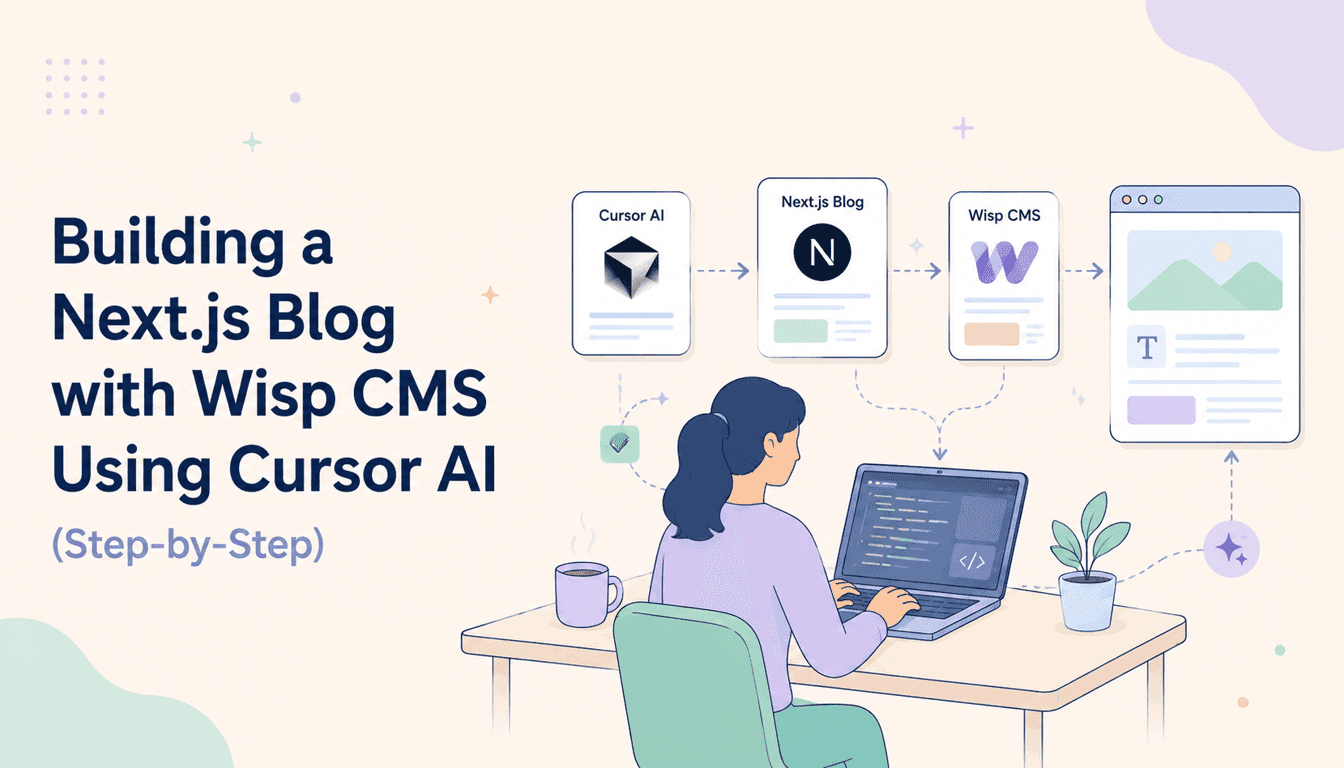
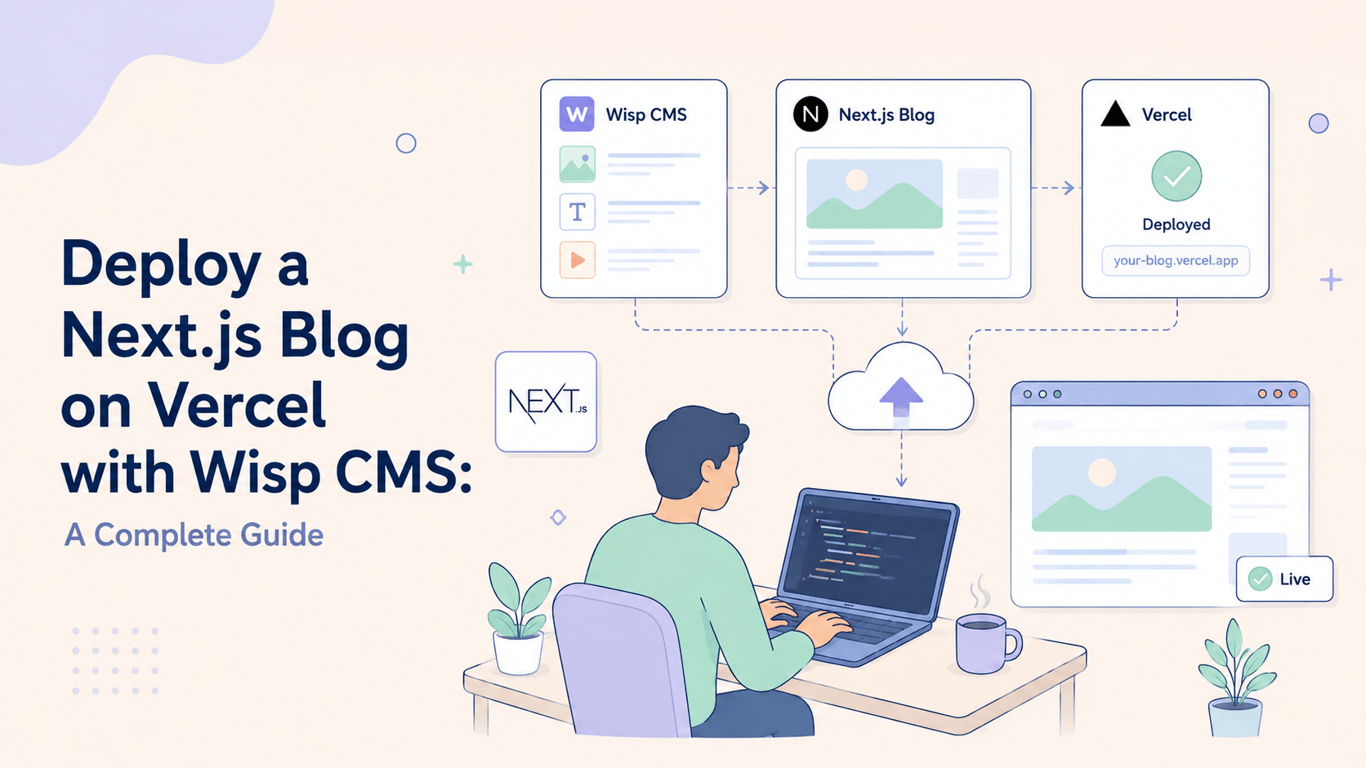
Today, the stack that consistently delivers the best developer experience and end-user performance for a blog is Next.js + Wisp CMS + Vercel. It gives you the power of a headless CMS, the performance of static generation, and a zero-config deployment pipeline, without the WordPress overhead, hosting a database, or writing raw markdown files just to publish a post.
This guide walks you through every step: from scaffolding your Next.js project to deploying a fully SEO-optimized blog on Vercel, live on the internet.
Why This Stack Is the Modern Default for Developer Blogs
Next.js: The Framework Built for Performance
Next.js, especially with the App Router introduced in v13+, is the gold-standard React framework for content-heavy sites. It ships with Server-Side Rendering (SSR), Static Site Generation (SSG), and Incremental Static Regeneration (ISR) out of the box. React Server Components further reduce client-side JavaScript, meaning your pages load faster than almost anything built with a traditional CMS.
The App Router also simplifies dynamic routing, making it trivially easy to build a blog where every post gets its own URL — no custom server config required.
Wisp CMS: The Headless CMS That Stays Out of Your Way
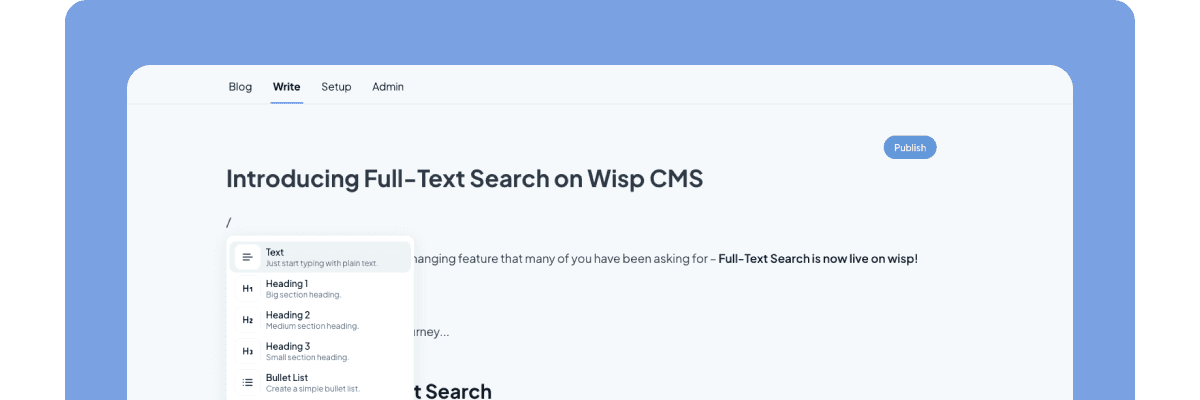
Wisp is purpose-built for developer blogs. Instead of wrestling with complex configurations, schema builders, or raw markdown files, you get an intuitive editorial experience that lets you focus on writing. It handles rich content, formatting, images, embeds, and exposes everything through a simple JavaScript SDK.
Crucially, you don't need to host Wisp yourself. There's no database to spin up, no Supabase instance to manage, no Docker container to babysit. You sign up, get a Blog ID, and start publishing.
Vercel: Zero-Config Deployment for Next.js
Vercel created Next.js, so the integration between the two is tight. Deploying to Vercel means you get automatic preview deployments on every pull request, a global edge CDN, and performance analytics, all without touching a server config file.
Prerequisites
Before you begin, make sure you have the following ready:
A Wisp account: Sign up at wisp.blog to get your Blog ID.
A Vercel account: Create one for free at vercel.com.
Node.js: The LTS version is recommended and should be installed on your machine.
A GitHub account: Required to connect your repository to Vercel.
Basic familiarity with React and Next.js: This guide assumes knowledge of core concepts. You can find a refresher in our docs.
Step 1: Create a New Next.js Project (App Router)
Open your terminal and scaffold a fresh Next.js project using the official CLI:
npx create-next-app@latest nextjs-wisp-blog
When prompted, use these settings:
TypeScript → Yes
ESLint → Yes
Tailwind CSS → Your preference
src/directory → No (keeps the structure simple)App Router → Yes ← This is important
Import alias → Default (
@/*)
Once the setup completes, navigate into your project:
cd nextjs-wisp-blog
Step 2: Install Wisp SDK & Configure Environment Variables
Install the official Wisp JavaScript SDK:
npm install @wisp-cms/client
If you encounter peer dependency conflicts, try:
npm install @wisp-cms/client --legacy-peer-deps
Next, create a .env.local file in the root of your project. This file stores your secrets locally and is never committed to Git:
NEXT_PUBLIC_BLOG_ID=your-blog-id-from-wisp-dashboard
You can find your Blog ID inside your Wisp dashboard under Settings. Verify that .env.local is already listed in your .gitignore (the create-next-app CLI adds it by default, but double-check before pushing to GitHub).
Step 3: Build the Blog Listing Page
Now let's build the homepage that lists all your blog posts. Because we're using the App Router, this component is a React Server Component by default, it fetches data directly on the server with zero client-side JavaScript overhead.
Replace the contents of app/page.tsx with the following:
import { buildWispClient } from "@wisp-cms/client";
import Link from "next/link";

const wisp = buildWispClient({
  blogId: process.env.NEXT_PUBLIC_BLOG_ID!,
});

export default async function HomePage() {
  const result = await wisp.getPosts();

  return (
    <main className="max-w-2xl mx-auto py-16 px-4">
      <h1 className="text-4xl font-bold mb-8">My Blog</h1>
      <div className="space-y-8">
        {result.posts.map((post) => (
          <div key={post.id}>
            <h2 className="text-2xl font-semibold">
              <Link href={`/blog/${post.slug}`}>{post.title}</Link>
            </h2>
            <p className="text-gray-600 mt-2">{post.description}</p>
          </div>
        ))}
      </div>
    </main>
  );
}
Run npm run dev and visit http://localhost:3000. If your Wisp Blog ID is set correctly, you'll see your posts rendered in the browser.
Step 4: Build the Individual Post Page (Dynamic Routing)
Next.js's App Router uses folder-based dynamic routing. Create the following file path:
app/blog/[slug]/page.tsx
This single file handles every blog post URL: /blog/my-first-post, /blog/another-article, and so on. The [slug] folder name is the dynamic segment.
import { buildWispClient } from "@wisp-cms/client";
import { notFound } from "next/navigation";

const wisp = buildWispClient({
  blogId: process.env.NEXT_PUBLIC_BLOG_ID!,
});

// Pre-generate all post pages at build time (SSG)
export async function generateStaticParams() {
  const result = await wisp.getPosts();
  return result.posts.map((post) => ({
    slug: post.slug,
  }));
}

export default async function PostPage({
  params,
}: {
  params: { slug: string };
}) {
  const result = await wisp.getPost(params.slug);

  if (!result.post) {
    notFound();
  }

  const { post } = result;

  return (
    <article className="max-w-2xl mx-auto py-16 px-4">
      <h1 className="text-4xl font-bold mb-4">{post.title}</h1>
      <p className="text-gray-500 mb-8">
        {new Date(post.publishedAt ?? post.updatedAt).toLocaleDateString()}
      </p>
      {/* Wisp returns sanitized HTML content */}
      <div
        className="prose prose-lg"
        dangerouslySetInnerHTML={{ __html: post.content }}
      />
    </article>
  );
}
Two things worth noting here:
generateStaticParamstells Next.js to pre-render every blog post at build time. This is what makes your blog blazing fast, as posts are served as static HTML from Vercel's edge CDN.dangerouslySetInnerHTMLis the correct way to render Wisp's rich HTML content. Wisp sanitizes this output on their end, so it's safe to use.
Step 5: Add SEO Metadata (Title, Description, & OG Tags)
One of the most common gaps in developer blogs is SEO, and the Next.js community knows it. Next.js 14+ has first-class support for metadata via the generateMetadata function, making it straightforward to set dynamic titles, descriptions, and Open Graph tags per page.
Add this to your app/blog/[slug]/page.tsx, before the PostPage component:
import type { Metadata } from "next";

export async function generateMetadata({
  params,
}: {
  params: { slug: string };
}): Promise<Metadata> {
  const result = await wisp.getPost(params.slug);
  const post = result.post;

  if (!post) return {};

  return {
    title: post.title,
    description: post.description,
    openGraph: {
      title: post.title,
      description: post.description ?? "",
      images: post.image
        ? [{ url: post.image, width: 1200, height: 630 }]
        : [],
      type: "article",
    },
    twitter: {
      card: "summary_large_image",
      title: post.title,
      description: post.description ?? "",
    },
  };
}
For a complete SEO setup, also add a sitemap.ts file in your app directory. This generates a dynamic XML sitemap that search engines can crawl:
// app/sitemap.ts
import { buildWispClient } from "@wisp-cms/client";
import type { MetadataRoute } from "next";

const wisp = buildWispClient({ blogId: process.env.NEXT_PUBLIC_BLOG_ID! });

export default async function sitemap(): Promise<MetadataRoute.Sitemap> {
  const result = await wisp.getPosts();

  return result.posts.map((post) => ({
    url: `https://yourdomain.com/blog/${post.slug}`,
    lastModified: new Date(post.updatedAt),
    changeFrequency: "weekly",
    priority: 0.8,
  }));
}
For a deeper dive into technical SEO for Next.js — including JSON-LD structured data and robots.txt — this comprehensive guide is an excellent reference.
Step 6: Deploy Your Next.js Blog on Vercel
With your blog built locally, it's time to deploy a Next.js blog on Vercel with the CMS connected. The process takes about five minutes.
1. Push Your Code to GitHub
Initialize a Git repository, commit everything, and push to GitHub:
git init
git add .
git commit -m "Initial commit: Next.js + Wisp blog"
Create a new repository on GitHub, then push:
git remote add origin https://github.com/your-username/nextjs-wisp-blog.git
git branch -M main
git push -u origin main
2. Import Your Repository into Vercel
Go to the Vercel import page and click "Add New Project". Connect your GitHub account if you haven't already, then select the nextjs-wisp-blog repository.
Vercel will automatically detect that it's a Next.js project and configure the build settings for you. You won't need to change the framework preset or build command.
3. Set Your Environment Variables
This is the most critical step that trips up first-time deployers. Before clicking Deploy, scroll down to the "Environment Variables" section and add:
Name | Value |
|---|---|
|
|
Without this variable, your build will fail or your pages will return empty. Vercel does not automatically read your .env.local file — you must manually add every environment variable here.
Once added, click Deploy. Vercel will clone your repo, run next build, and publish your site to a global CDN. Your blog is live.
Step 7: Configure ISR for Blog Performance
By default, running generateStaticParams produces a fully Static Site Generated (SSG) blog. Every post is pre-built at deploy time and served as static HTML. This is the fastest possible setup, but it means new posts won't appear until you trigger a new deployment.
For a blog, Incremental Static Regeneration (ISR) is the better choice. ISR lets your pages revalidate in the background at a set interval, so new posts from Wisp appear automatically without a full redeploy.
Enable ISR by adding a revalidate export to your pages:
// app/page.tsx — revalidate the post list every hour
export const revalidate = 3600;

// app/blog/[slug]/page.tsx — revalidate individual posts every 10 minutes
export const revalidate = 600;
You can tune these numbers based on your publishing cadence. If you post daily, 3600 (1 hour) is perfectly reasonable. If you're making frequent corrections, drop it to 300 (5 minutes). See Vercel's official Next.js documentation for advanced ISR configuration options.
Troubleshooting Common Issues
Missing Environment Variables
Symptom: Your Vercel build succeeds, but the blog listing page is empty, or you see an error like Cannot read properties of undefined (reading 'blogId').
Fix: Go to your Vercel project → Settings → Environment Variables. Confirm that NEXT_PUBLIC_BLOG_ID is present and the value matches exactly what's in your Wisp dashboard. After adding or changing a variable, you must redeploy the project for the change to take effect.
ISR Caching Issues: New Posts Not Appearing
Symptom: You published a new post in Wisp, waited longer than your revalidate time, but the post still isn't showing on the live site.
Fix: Go to your Vercel dashboard → Deployments, click the three-dot menu on your latest deployment, and select "Redeploy" with the "Clear build cache" checkbox enabled. This forces Vercel to do a complete fresh build and purges any stale cached pages.
Images Not Loading (400 Error or Broken Image Icon)
Symptom: Post images from Wisp display as broken icons, and your browser console shows a 400 error referencing an external image hostname.
Fix: Next.js requires you to explicitly allowlist external image domains. Open next.config.js (or next.config.ts) and add Wisp's image hosting domain:
/** @type {import('next').NextConfig} */
const nextConfig = {
  images: {
    remotePatterns: [
      {
        protocol: "https",
        hostname: "imagedelivery.net", // Wisp uses Cloudflare Images
      },
    ],
  },
};

module.exports = nextConfig;
Check the URL of a broken image in your browser's Network tab to confirm the exact hostname, then update the config accordingly.
Ship Your Blog, Not Your CMS
You've just built a high-performance developer blog with a modern stack. The key is separating your content from your code: use Next.js for a lightning-fast frontend and a headless CMS to handle the writing experience. Now that the foundation is solid, your next step is simple: publish your first post.
If wrestling with Markdown files or clunky dashboards feels like a drag on your workflow, Wisp's free plan offers a purpose-built platform without the friction. See Wisp in action to find out if it is the right fit for your new blog.
FAQs
Why is the Next.js, Wisp, and Vercel stack good for a developer blog?
This stack is ideal for a developer blog because it combines Next.js's static performance with Wisp's easy content management and Vercel's seamless deployment. You get a fast, SEO-friendly site without managing a database or server.
Do I have to use Vercel for hosting?
No, you do not have to use Vercel. While Vercel offers the tightest integration with Next.js, you can deploy a Next.js application to other platforms that support Node.js, such as Netlify, AWS Amplify, or a custom server.
What makes a CMS "headless"?
A CMS is "headless" when it separates the content management backend from the frontend presentation layer. It provides your content as data via an API, giving you the freedom to build your user-facing site with any technology, like Next.js.
How does Incremental Static Regeneration (ISR) work?
ISR works by automatically rebuilding static pages at a set interval after they've been visited. This allows your blog to be served statically for speed while still fetching new content from your CMS without requiring a full site redeployment.
Can I migrate my existing Markdown blog posts to Wisp?
Yes, you can migrate existing Markdown posts. Many headless CMS platforms, including Wisp, offer import tools or APIs that allow you to programmatically move your content from .md or .mdx files into the new system.
Is this setup expensive for a personal blog?
No, this setup is very cost-effective for a personal blog. Vercel's Hobby tier is free and generous enough for significant traffic. Headless CMS platforms like Wisp typically offer a free tier that is perfect for individual developers.
How does this setup improve SEO compared to a traditional CMS?
This setup improves SEO primarily through performance. Statically generated pages from Next.js load incredibly fast, which is a major Google ranking factor. You also get full control over metadata, structured data, and sitemaps.